The Order Tracker Tool for Google Sheets: What I Learned Running Two Online Stores
Running a small business means juggling a dozen things at once. Between creating products, managing customers, and keeping your sanity, the last thing you want is to lose track of an order. That is exactly why I built the Order Tracker Tool for Google Sheets — a template born from my own frustration of managing two very different online stores: one selling physical art prints and another selling digital downloads. I needed something simple, visual, and accessible from my phone. This tool became the backbone of my order workflow. But before you download a template or build your own, let me walk through the common pitfalls I see business owners make — and how to avoid them.
Why an Order Tracker Template Matters More Than You Think
If you are selling anything online, whether it is a handful of handmade items a month or a growing catalog of digital products, knowing where each order stands is nonnegotiable. A spreadsheet might feel basic compared to expensive CRM software, but a well-structured Order Tracker Template in Google Sheets gives you flexibility that rigid tools often lack. You can customize it, access it on any device, and — best of all — it costs nothing beyond your time.
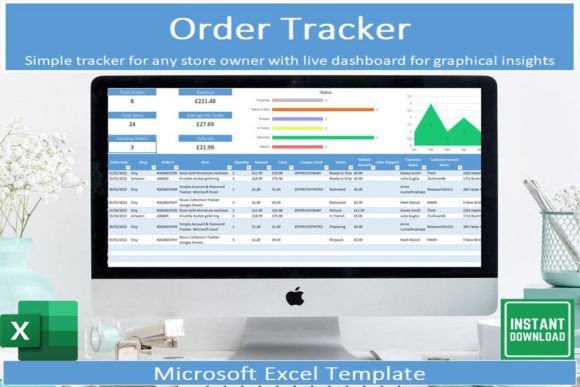
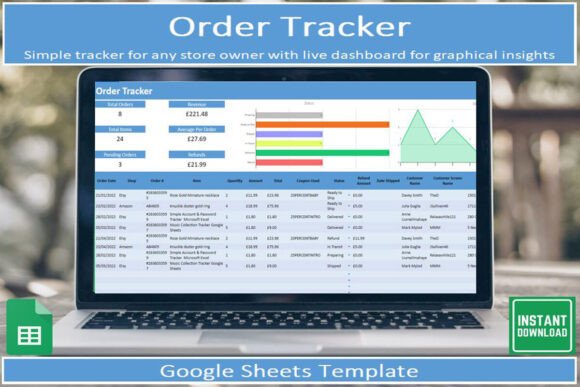
What many people miss is that a tracker is not just a list. It is a decision-making tool. When you can see at a glance which orders are pending, which are shipped, and which are stuck, you can prioritize better and communicate with customers honestly. The Order Tracker Tool I Google Sheets includes built-in graphical insights that update automatically as you enter data, turning raw information into actionable visuals. That is the difference between reacting to problems and preventing them.
Mistake 1: Using a Static List Without Order Stages
The most common error I encounter is people tracking orders in a plain list with no status column. They write down the customer name, the item, and maybe the date, but they never define where the order is in the process. This quickly becomes useless. When a customer emails asking, "Has my order shipped?" you have to dig through notes or scroll through rows hoping for a clue.
What to do instead: Every order needs a clearly defined pipeline. In my Order Tracker template, I include stages from "Order Received" all the way to "Delivered to Customer." Between those, I add steps like "Payment Confirmed," "Packing," "Shipped," and "Tracking Sent." This way, I can filter for only the orders that need my attention right now — like everything still in "Packing" at the end of the day. A simple dropdown menu for status is worth more than a dozen manual notes.
Mistake 2: Ignoring the Power of Filters and Sorting
Many small business owners treat their spreadsheet like a digital notebook. They enter data and never use the tools Google Sheets offers. That is like buying a smartphone and only using it to make calls. When you have more than a handful of orders, sorting and filtering become essential.
For example, if you want to see only digital download orders from the past week, you can filter by product type and date. If you need to know which orders are overdue, sort by expected delivery date. The Order Tracker Template for Google Sheets is designed with these functions in mind. The header row should be frozen, and each column should have a filter view. This lets you switch between a full overview and a focused subset of data without losing anything.
How this helps: When I run my art store, I use filters to isolate physical orders that need shipping labels. For my digital store, I filter to see which downloads have not been accessed yet, so I can follow up if needed. Without filters, you are flying blind.
Mistake 3: Forgetting That Mobile Access Changes Everything
Here is a scenario that used to happen to me regularly: I am at a craft fair, a customer asks about their online order, and I have no way to check. My laptop is at home, and my notes are on a scrap of paper. You do not need to be tethered to a desk to run a modern small business.
The Order Tracker Tool I Google Sheets works seamlessly with the free Google Sheets app on your phone. You can update a status, add a note, or check a tracking number from anywhere. If you have never tried editing a spreadsheet on your mobile device, it takes a minute to get used to, but once you set up your columns and dropdowns, it becomes fast. I recommend testing it with a few test entries before you rely on it live. Make sure the columns are narrow enough to read on a small screen, and use data validation to keep entries consistent.
What to check: Before you commit to a template, open it on your phone. Can you tap the dropdown easily? Does the layout scroll without frustration? If a template is not mobile-friendly, it will not be used. Period.
Mistake 4: Overlooking the Insights That Come From Data
Most order trackers I see are purely operational — they tell you what to do next, but they never tell you what is happening overall. That is a missed opportunity. My template includes automatic graphical insights that update as you go. These charts reveal patterns: Which products sell fastest? Which shipping method causes the most delays? What is your average time from order to delivery?
Without these insights, you are making decisions based on gut feeling. With them, you can make informed choices. For example, I noticed that one shipping carrier was consistently adding two extra days to delivery times. I switched providers, and my customer satisfaction improved noticeably. That kind of knowledge comes from tracking not just the order, but the data around it.
Practical advice: When you set up your Business Tracker spreadsheet, include columns for order date, shipped date, delivered date, and carrier. Even if you do not use the data today, having it ready means you can analyze it later. A few extra columns now can save you hours of frustration down the line.
Mistake 5: Choosing a Template That Is Either Too Complex or Too Sparse
I have seen templates with forty columns that ask for customer eye color and preferred contact time. I have also seen templates with three columns that barely qualify as a list. Neither works. The sweet spot is a template that covers the essential stages of your specific business without drowning you in fields you will never fill out.
For a Small Business Spreadsheet, the core columns should include: order number, customer name, product, quantity, order date, status, payment status, shipping method, tracking number, and notes. Everything beyond that is optional. My Monthly Order Tracker for Google Sheets includes a dedicated tab for all orders and a separate tab for monthly summaries. That keeps the daily view clean while still giving you a big-picture perspective.
How to evaluate a template: Before you download, think about your workflow. Do you need to track backorders? Do you offer multiple shipping options? Do you send follow-up emails after delivery? Your template should match your process, not the other way around. If you have to fight the tool every time you use it, it is not the right tool.
Mistake 6: Not Reading the Instructions or Understanding the Structure
This one might sound trivial, but it is the most common issue I see. People download a digital download of a template, open it, and immediately start typing without understanding how the formulas work. Then they accidentally overwrite a calculation, break a chart, and wonder why the insights stopped updating.
My template comes with a PDF link containing clear instructions on what everything is and how to use it. I walk you through the purpose of each column, how the automatic charts work, and how to customize the status options. I learned the hard way that a great tool is useless if nobody knows how to use it.
Better approach: When you get a new template, spend ten minutes reading the instructions. Make a copy before you start editing. Test the dropdown menus. Enter a few dummy orders to see how the charts react. This upfront investment pays for itself the first time you need to find a specific order in a hurry.
What to Check Before You Download Any Order Tracker Template
Not all templates are created equal, and some will cause more headaches than they solve. Here is a quick checklist I recommend running through before you commit to any Order Tracker Tool for Google Sheets:
- Does it require a Google account? Yes, this is standard. Make sure you have one and are comfortable with sharing permissions if you plan to collaborate.
- Can you filter and sort easily? Check if the header row has filter views enabled. If not, you will need to add them yourself.
- Are there automatic insights or charts? Visual summaries save you from manually calculating trends. If a template lacks this, you are missing a major benefit.
- Is it easy to update on mobile? Open the template on your phone during the evaluation period. If it is clunky, keep looking.
- Does it match your order stages? Your business is unique. A good template allows you to customize statuses without breaking formulas.
Final Thoughts: A Tracker Should Work for You, Not the Other Way Around
I built my Order Tracker Template because I needed something that could keep up with two very different businesses. It needed to be flexible enough for physical shipping and simple enough for digital downloads. Most importantly, it had to be quick — quick to update, quick to check, and quick to share with a team if needed.
If you are still tracking orders in a notebook or relying on memory alone, I encourage you to try a structured spreadsheet. You do not need a complicated system. Just clear stages, consistent entries, and a way to see the big picture at a glance. The Order Tracker Tool I Google Sheets gives you exactly that: a practical, mobile-friendly way to keep your orders organized so you can focus on the parts of your business that actually grow it.
Take a few minutes to set it up right, and you will thank yourself the next time a customer asks, "Where is my order?"