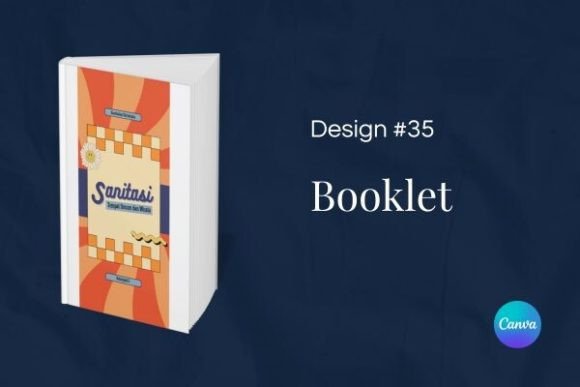
Design 35 – Booklet Template: A Practical Tool for Streamlined Information Design
Creating a information booklet or brochure that stands out without consuming days of design work is a challenge many professionals face. Whether you are launching a new service, compiling a portfolio, or crafting a program guide, the visual structure of your document directly affects how your audience perceives your message. The Design 35 – Booklet Template offers a ready-made framework that balances uniqueness with efficiency, letting you focus on content while maintaining a polished, professional look.
Built specifically for Canva, this template provides a 12-page layout at 10 x 21 cm — a compact, portrait format that feels substantial in hand but remains easy to distribute digitally or in print. Below, we explore how this template fits into real workflows, how to prepare your materials, and how to integrate it with your existing processes for consistent, high-quality results.
Understanding the Template’s Role in Your Workflow
The Design 35 – Booklet Template is not just a static design file — it is a starting point that sits in the middle of your content creation process. Before you open it, you typically have raw content: text drafts, images, data, or a rough outline. After you finish editing, you have a finished booklet ready for distribution. The template bridges these two stages by providing a visual structure that organizes your information clearly and attractively.
This template works well as a pre-production tool when you are planning a project, because its defined page count and dimensions force you to be concise. It also functions as a production asset during the creation phase, allowing you to iterate quickly within Canva. After your booklet is complete, it becomes a deliverable — something you can share with clients, stakeholders, or your audience immediately.
Where It Fits in Different Scenarios
The versatility of this booklet template means it can serve multiple roles depending on your context:
- Before a launch or event: Use it to create a teaser booklet or program guide that builds anticipation. You can draft the layout, placeholder images, and headlines, then fill in final details as the date approaches.
- During a creative project: If you are a designer, marketer, or educator, the template acts as a skeleton for mood boards, style guides, or student handouts. You can move elements around freely to test different arrangements without starting from zero.
- After gathering research or data: Compile your findings into a clean, readable format. The 12-page structure encourages you to group related information logically, making it easier for readers to follow your narrative.
- As part of a recurring process: For quarterly newsletters, monthly reports, or seasonal catalogs, you can duplicate the template in Canva and update only the content. This consistency saves time and reinforces brand recognition.
Preparation: What You Need Before You Start
To get the most out of the Design 35 – Booklet Template, a small amount of preparation goes a long way. Because the template is fully editable in Canva, your primary task is to gather your assets beforehand. This includes:
- Text content — Write or finalize your copy for each of the 12 pages. Consider the flow: introduction, main sections, supporting details, and a closing page or call to action.
- Images and graphics — Collect high-resolution photos, illustrations, logos, or icons that align with your message. The template’s design includes spaces where visuals can be placed, so having them ready speeds up editing.
- Brand elements — If you have brand colors, fonts, or a specific style, note these down. The template is easy to customize, so you can replace default colors and typefaces to match your identity.
- Purpose and audience — Define what you want the booklet to achieve. Are you informing, persuading, instructing, or showcasing? This clarity will guide how you arrange content within the template.
Preparation is not about perfection — it is about reducing friction when you start editing. The more you have ready, the smoother the process becomes.
Editing in Canva: A Streamlined Experience
Canva templates are designed for ease of use, and the Booklet 35 is no exception. Once you open the template in Canva, you can immediately begin adjusting every element. Here is a practical breakdown of how the editing process typically unfolds:
- Open and review the template. Take a few minutes to flip through all 12 pages. Notice how the layout uses space, where text blocks sit, and how images are framed. This gives you a sense of the template’s rhythm.
- Replace placeholder text. Click on any text box and type your own content. Canva’s interface makes this straightforward. Keep an eye on text length — if a page feels too crowded, you can adjust font size or edit your copy to fit.
- Swap images. Drag your own images into the designated frames. The template likely uses masks or frames that maintain aspect ratios, so your visuals will stay cleanly cropped without extra effort.
- Adjust colors and fonts. Use Canva’s style tools to apply your brand palette. You can change the color of backgrounds, text, shapes, and accents in a few clicks. Similarly, update fonts to match your brand or readability preferences.
- Move and rearrange elements. Because the template is fully editable, you can shift any component — text boxes, images, icons, or decorative shapes — to better suit your content. This flexibility is especially useful if you need to emphasize a particular section or add extra elements.
- Add or remove pages if needed. While the template comes with 12 pages, you can duplicate or delete pages in Canva. If your content requires fewer pages, simply remove the extras. If you need more, duplicate existing pages and adjust them.
One of the strongest practical advantages of this template is its editability. You do not need to learn complex software or design principles. The template does the heavy lifting of layout and composition, while you focus on content and branding.
Practical Implementation Tips for Different Users
The Design 35 – Booklet Template adapts to a wide range of users. Here are specific ways different professionals can integrate it into their work:
For Small Business Owners and Entrepreneurs
Use the booklet as a mini catalog or service overview. Place your most popular products or services in the first few pages, followed by testimonials or case studies. The compact 10 x 21 cm format works well as a digital PDF to email to prospects, or as a printed handout at networking events. Because the template is easy to edit, you can update pricing or offers quarterly without redesigning from scratch.
For Marketers and Content Creators
Create lead magnets or downloadable resources. A well-designed booklet can be a high-value opt-in offer for your website or social media. Structure the 12 pages to deliver a specific insight or how-to guide, with a clear call to action on the final page. The template’s visual appeal helps build trust with your audience, and since it is editable, you can A/B test different covers or headlines.
For Educators and Trainers
Design course handouts, workshop materials, or study guides. The template’s organized layout helps students follow along easily. You can use one page per topic, include diagrams or illustrations, and leave space for notes. Over a semester, you might create a series of booklets that build on each other, maintaining consistent branding throughout.
For Freelancers and Creative Professionals
Showcase your portfolio in a format that feels curated and intentional. Use the booklet to present your best work, describe your process, and include client testimonials. The 12-page limit forces you to be selective, which often results in a stronger overall impression. You can send the PDF to potential clients or include it in your proposal packages.
For Hobbyists and Personal Projects
Document a trip, a recipe collection, or a family history. The template makes it easy to combine photos and text in a way that feels professional but personal. Because it is a Canva template, you can work on it from anywhere, share it with family for input, and export it as a keepsake.
Compatibility and Integration with Other Tools
The Booklet 35 template lives inside Canva, which means it interacts well with other platforms and resources. You can import images from Google Drive, Dropbox, or your computer directly. If you use stock photo sites like Unsplash or Pexels, Canva’s built-in library also offers free and premium images that you can add without leaving the editor.
For team collaboration, Canva allows multiple people to edit the same template. This is useful if you are working with a copywriter, designer, or client. Comments and suggestions can be made within the platform, streamlining review cycles.
When the booklet is ready, you can export it in various formats. PDF is ideal for printing or professional sharing, while PNG or JPG pages work well for social media previews. You can also export as a video or GIF if you want to create a flip-through animation for online use.
The template’s dimensions (10 x 21 cm) are print-friendly and compatible with standard booklet printing services. Be sure to check your printer’s specifications for bleed and margin requirements — Canva allows you to set these easily in the export settings.
Maintaining Consistency and Quality Over Time
One of the most valuable aspects of using a template like Design 35 is the ability to maintain visual consistency across multiple projects. When you use the same template repeatedly — with your brand colors, fonts, and logo — your audience begins to recognize your materials instantly. This builds credibility and trust.
To ensure quality control, establish a simple checklist before finalizing each booklet:
- Check that all text is accurate and free of typos.
- Confirm that images are high resolution and properly aligned.
- Verify that branding elements are applied consistently on every page.
- Review the flow from page to page — does the narrative feel logical?
- Test the PDF on different devices or print a test copy if possible.
Long-term use of the template also means you can build a library of past booklets. This archive becomes a reference for future projects, helping you see what worked and what you might improve. Over time, your efficiency increases because you are not starting from scratch each time — you are refining a proven structure.
Observations on Usability and Efficiency
From a usability standpoint, the Booklet 35 template excels because it reduces decision fatigue. Instead of worrying about margins, grid systems, or color harmony, you can focus on what matters: your message. The template’s design already incorporates aesthetic principles, so even if you are not a designer, the result looks intentional and polished.
The 12-page count is a sweet spot for information booklets. It is long enough to cover a topic in depth but short enough to hold a reader’s attention. The 10 x 21 cm format is also practical — it fits in a standard envelope, slips into a bag easily, and feels comfortable to hold. For digital use, it displays well on screens without excessive scrolling.
Because the template is created in Canva, there is no software installation or license fee beyond Canva’s free or pro tiers. This low barrier to entry makes it accessible for individuals and teams with limited budgets. The editing process is intuitive, so even first-time users can produce a finished booklet in an afternoon.
Final Thoughts on Integrating Design 35 into Your Routine
Whether you are preparing a one-time brochure or establishing a recurring publication workflow, the Design 35 – Booklet Template offers a reliable foundation. It reduces the time spent on layout and design, allowing you to concentrate on crafting clear, engaging content. By preparing your materials in advance, leveraging Canva’s editing tools, and maintaining consistency across projects, you can produce professional booklets that serve your goals effectively.
The template is not a magic solution — it is a practical instrument that works best when paired with thoughtful planning and clear objectives. But for anyone who needs to communicate ideas in a structured, visually appealing format, it is a resource worth having in your toolkit. Open it in Canva, make it your own, and let your content take center stage.