Arrow Infographic PowerPoint Template: Visual Storytelling for Professionals
You have a big idea, a complex process, or a strategy that needs buy-in. You open PowerPoint, stare at a blank slide, and feel the pressure mount. The default templates feel tired. The audience deserves better. This is where the Arrow Infographic PowerPoint Template steps in—not as a crutch, but as a strategic asset. It is a complete presentation toolkit designed to turn your raw information into a clear, compelling visual narrative without demanding hours of design work.
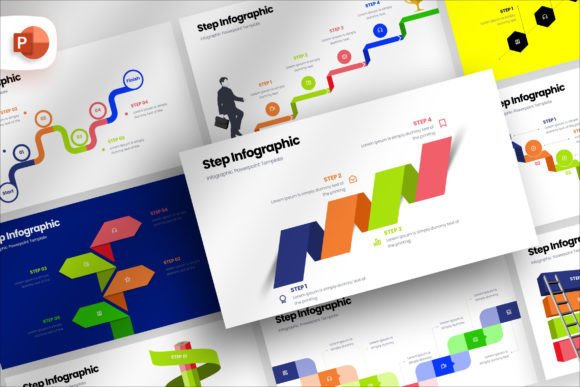
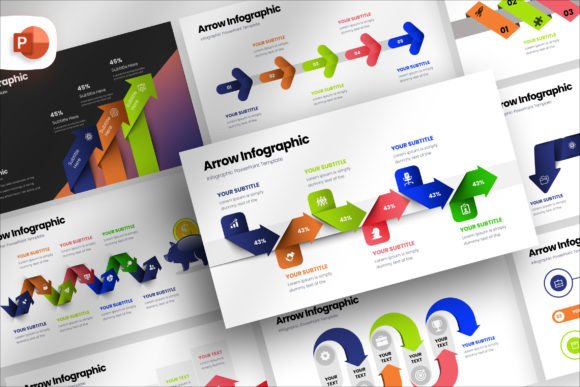
Visually, this template leans into clarity and forward momentum. Arrows are inherently directional, guiding the viewer’s eye exactly where you want it to go. The slides use a clean, modern aesthetic with flat or subtly dimensional icons and plenty of white space. Color palettes are professional but flexible—think muted tones with accent highlights, though you can easily swap them to match your brand. The personality is confident, structured, and approachable. It does not shout for attention; it earns it by making your content easy to digest. Whether you are mapping a customer journey, breaking down a quarterly goal, or illustrating a product roadmap, the template provides a consistent visual language that keeps the focus on your message.
This is not a one-size-fits-all deck. It is a system of 95 unique slides, each crafted around the arrow motif. You get flowcharts, timelines, step-by-step processes, comparison layouts, and data visualization pages. The style is polished enough for the boardroom but flexible enough for a classroom workshop. It feels contemporary without chasing trends that will look dated next year. For anyone who has ever struggled to make a process slide look professional, this template is a genuine time-saver.
Where the Arrow Template Delivers Real Value
The beauty of this infographic set is its range. It adapts to contexts that demand clarity and structure, which is almost every professional setting nowadays. Here is where it tends to work best across different fields.
Brand Strategy and Marketing Presentations
Marketers live in a world of funnels, journeys, and touchpoints. The Arrow Infographic PowerPoint Template naturally maps onto these concepts. You can show a customer’s path from awareness to advocacy with a slide that literally illustrates the flow. Agency pitches, campaign recaps, and content calendars all benefit from the visual hierarchy the arrows create. Instead of a bullet list listing “Step 1, Step 2, Step 3,” you get a slide that feels like a story unfolding. This helps your audience remember the sequence long after the meeting ends.
Internal Communications and Strategy Rollouts
When you need to align a team around a new initiative, clarity is non-negotiable. Entrepreneurs and small business owners often have to communicate complex strategies without a dedicated design team. This template lets you present everything from annual goals to operational workflows with a professional sheen. The drag-and-drop picture placeholders mean you can add team photos, product shots, or environment images in seconds. The auto-adjustment feature handles sizing and cropping, so you stay focused on your argument, not the layout.
Education and Training Modules
Educators, trainers, and content creators who build learning materials will appreciate how the template breaks down information into manageable chunks. Step-by-step instructions, decision trees, and cause-and-effect diagrams become intuitive. The 16:9 aspect ratio fits modern screens perfectly, whether you are presenting in a physical classroom or over Zoom. The consistent arrow language helps learners follow a logical thread, reducing cognitive load and improving retention.
Editorial and Digital Publishing
Bloggers and publishers who repurpose presentation content for social media or web use will find the template useful. The clean slide designs translate well into static images for Instagram, LinkedIn, or Medium. You can export key slides as graphics that explain a process or highlight data without needing extra design tools. The mockup device slide is a bonus here: drop in a screen capture to show your product or app in context, which adds credibility to any digital pitch.
How This Template Influences Readability and Engagement
Presentations live or die on how easily the audience can follow the thread. The Arrow Infographic PowerPoint Template builds that thread visually. Here is how it affects the core elements of effective communication.
Visual Hierarchy and Flow
Arrows are natural attention-directors. They create a reading path that the eye follows without conscious effort. In a well-designed infographic slide, the title sits at the top, the arrow sequence moves left to right or top to bottom, and supporting text or icons align along the way. This structure reduces the guesswork for your viewer. They do not have to figure out where to look next—the slide leads them. The result is a smoother, faster comprehension of your idea.
Brand Consistency and Professionalism
Using a cohesive template across a presentation signals that you have prepared and that you care about the details. The consistent arrow style, color coding, and layout grid create a unified brand feel. For a small business pitching to investors, that level of polish can differentiate you from a competitor who shows up with mismatched slides. The template is fully editable—color, size, shape, position—so you can match it to your existing brand guidelines without starting from scratch. This builds trust and recognition over time.
Audience Engagement
When your slides are visually clear, you spend less time explaining the structure and more time discussing the substance. Audiences engage more deeply when they are not struggling to decode your slides. The template allows you to use icons, short labels, and data callouts that reinforce your spoken points. People remember what they see far longer than what they hear. By pairing your verbal message with a strong visual framework, you increase the chance that your audience will recall your key points tomorrow, next week, and next month.
Practical Guidance for Choosing and Using This Template
Choosing a presentation template is not just about picking something that looks good. It is about fit. Here is how to evaluate whether the Arrow Infographic PowerPoint Template is right for your specific project, and how to get the most out of it once you start editing.
Assess Your Content Structure First
Before you open the file, map out your presentation’s story. Does your content naturally follow a sequential or directional flow? If you are explaining a process, a timeline, or a cause-and-effect relationship, the arrow motif will reinforce your message. If your presentation is mostly comparative or exploratory, you may find the template’s structure still works well for certain slides, but you will want to supplement with other layouts. The beauty here is that you get 95 unique slides, so you have options. Pick the ones that match each section’s needs rather than forcing every idea into an arrow shape.
Test Font Pairings and Readability
The template comes with fonts included in the documentation folder. Use these as your starting base because they are already optimized for the slide layouts. However, do not hesitate to swap in your own typeface if it better reflects your brand. For body text, prioritize readability at a distance—avoid thin or highly decorative fonts on slides with dense information. For headlines, a slightly bolder or more expressive font can add personality. Pair a clean sans serif for your body with a more assertive display or serif font for your titles to create contrast. The template’s drag-and-drop placeholder system makes it easy to adjust font size, transparency, and shape properties without breaking the layout.
Review What Is Included—and What Is Not
Look closely at the package contents. You get the PowerPoint file with 95 slides, a documentation file, and the fonts. What you do not get is the stock photography. The slides include placeholders for images, but the actual photos are yours to provide. This is actually a plus: you can use your own product shots, team photos, or brand imagery instead of generic stock. Plan your image sourcing before you start designing so that you can fill those placeholders with content that feels authentic.
Commercial Licensing and Real-World Use
Check the license terms before you purchase. If you are a freelancer, consultant, or agency creating presentations for clients, you need a license that covers commercial use. The template itself is intended for professional presentation work—business pitches, educational modules, marketing reports, and internal training. It is not intended for resale as a standalone product. Understanding this upfront avoids legal headaches later. For most entrepreneurs, marketers, and content creators, the standard license will cover your daily work.
Realistic Examples of the Template in Action
Let me give you a few concrete scenarios where this template shines.
Scenario One: The Investor Pitch. You are a startup founder seeking seed funding. Your deck needs to show the problem, your solution, the market size, and your traction. Use the arrow timeline slide to illustrate your product development milestones. Then use a flow chart slide to show how your solution addresses each pain point. The professional layout removes friction. The investor focuses on your numbers and your story, not on awkward formatting.
Scenario Two: The Quarterly Business Review. You manage a marketing team and need to present Q3 results to leadership. Use the template’s comparison slides to show Q2 versus Q3 performance. Use an arrow process slide to outline the steps your team took and where you saw the biggest gains. The visual structure turns a data-heavy review into a narrative that your boss actually follows.
Scenario Three: The Online Course Module. You are a content creator building a course on social media strategy. Use the step-by-step arrow slides to walk students through setting up a campaign, creating content, and analyzing metrics. The consistent visual framework helps students transfer knowledge from one module to the next. They start to associate your brand with clarity and structure.
Final Observations on Design Assets and Workflow
Presentation design does not have to be a bottleneck. The Arrow Infographic PowerPoint Template functions as a design asset that reduces your production time while raising the output quality. For anyone who regularly builds presentations—designers, marketers, entrepreneurs, educators, content publishers—it fills a specific gap. You get modern typography, a coherent arrow-based visual system, and fully editable components. You do not get flashy animations that distract or overly complex diagrams that confuse. Instead, you get a tool that treats your content with respect.
If you value consistency, clarity, and professionalism in your presentations, this template is worth a close look. It is the kind of resource that quietly makes your work better without calling attention to itself. And in the world of presentations, that is exactly the point.